
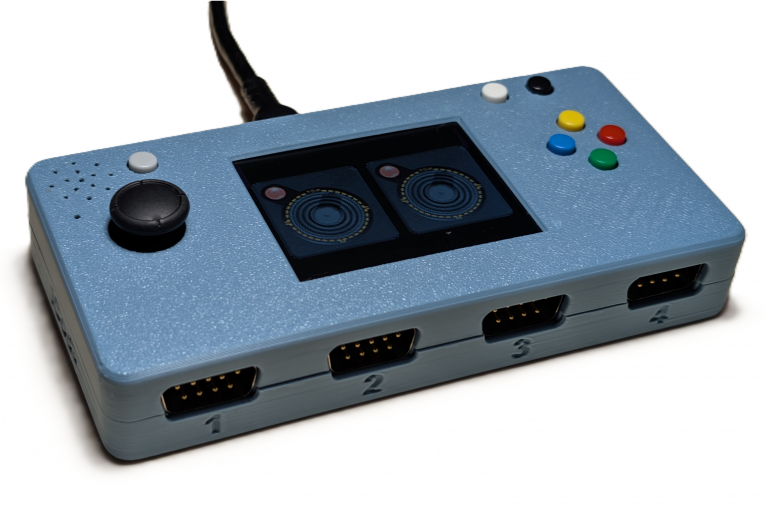
iCode Quad Ultimate CX
Pick a guide below. The newest firmware, its release notes and the user manual are always on the Quad Ultimate downloads page, and you can update in one click with iCodeHub.
Guides
How to Add Arcade and Atari Games
Load your own arcade ROMs and Atari games onto the device.
Getting Started
Plug in, the start-up menu, and the Games menu.
How to Update your Firmware
Update with iCodeHub, or install the firmware file yourself.
Game Controls
The buttons for arcade and Atari games on this device.
4-Player Paddles on MiSTer FPGA
Play Warlords with four paddles on a MiSTer.
Product Manual & Firmware
The user manual (PDF), the latest firmware and release notes.
Troubleshooting
Fixes for the most common problems.
Using RetroPie (coming soon)
Set up the adapter with RetroPie, Batocera and RetroArch.
Videos (coming soon)
Getting started, adding games and more on YouTube.
Getting started
- Plug the Quad into any USB port. The start-up menu appears — pick Game Adapter, or wait 8 seconds. No drivers are needed: it appears as one standard USB gamepad for each active port.
- Connect your Atari controllers. The four ports are numbered 1 to 4 from left to right, and all four work at once.
- Start playing. The default preset detects joysticks and paddles automatically: joystick directions go to the left analog stick and the fire button to gamepad button 0.
- Visit iCodeHub in Chrome or Edge to remap buttons, fine-tune paddles and trackballs, back up presets and update the firmware.
The start-up menu and the Games menu
Each time the device powers up, the start-up menu appears with four choices: Game Adapter, Arcade Games, Atari Games and Built-in Games.
- Move up and down to choose, then click the stick or press Red or Green to start. Press Menu to go straight to the Game Adapter.
- The item with the yellow star is the default — it starts by itself after 8 seconds. To change the default, highlight another item and press Yellow or Blue, or push left or right.
- Coming back from an arcade or Atari game skips the start-up menu.
- To turn the menu off, open Menu → General and set Start-up Menu (and Start-up Default).
- The Games menu is always one step away: hold Yellow + Menu, or choose Games at the top of the main menu.
Game controls
Arcade games
| Control | Action |
|---|---|
| Port 1 joystick or thumbstick | Move |
| Port 1 fire, Red, Blue, or thumbstick click | Fire (A) |
| Green or Yellow | Second button (B) — in one-button games, also Fire |
| Black | Start |
| White | Insert coin |
| Hold Menu (1 second) | Back to the game list |
Press White to insert a coin, then Black to start. Xevious, Super Cobra and Scramble use both buttons: A for the first, B for the second.
Atari computer games
| Control | Action |
|---|---|
| Ports 1 to 4 | Atari joysticks 1 to 4 |
| Paddles on Ports 1 and 2 | The four paddles (Kaboom!, Super Breakout…) |
| Thumbstick / click | Joystick 1 / Fire |
| Red | Fire |
| Black | START |
| White | SELECT |
| Green | OPTION |
| Yellow | SPACE |
| Blue | On-screen keyboard |
| Right side button | RETURN |
| Hold Menu (1 second) | Back to the game list |
In the game list, press Fire, Red or Black to play on an 800XL, or White to play on a 400/800. For four-player games such as M.U.L.E., start with White — the 400/800 has four joystick ports. Turn each paddle from end to end once so the device learns its range.
Atari 5200 games
| Control | Action |
|---|---|
| Thumbstick | The 5200 controller’s analog stick |
| Red or thumbstick click | Bottom fire |
| Green | Top fire |
| Black | START |
| White | PAUSE |
| Yellow | * |
| Blue | The controller keypad on screen (0–9, *, #, START, PAUSE, RESET) |
Adding games: see How to Add Arcade and Atari Games.
Troubleshooting
- Your controller isn’t detected. Make sure it’s firmly plugged in. Press Menu, open the port settings and check the device type. Menu → System → Diagnostics shows what the device reads.
- Your computer or console doesn’t recognize the adapter. Try another USB cable or port. Then try another mode in Menu → USB Settings → USB Emulation: Standard works for most, some need Classic, Nintendo, Legacy, iOS or Classic 2.
- No arcade games are listed. Check that the zip files are on the ARCADE ROMS drive with the exact names in the ROM list. A game in red has the wrong ROM set.
- An Atari game crashes or shows a blank screen. Some early games need the original Atari operating system: copy ATARIOSB.ROM and ATARIXL.ROM onto the drive, or start the game on a 400/800 (see the controls above).
- Arcade high scores were lost. Scores are saved when you leave a game by holding Menu. Return to the game list before switching off.
- The display is blank. Hold Green + Menu to cycle the display modes — it may be set to Off.
- You see several gamepads on your computer. That’s normal: one USB gamepad per active port. Use Ports Active in USB Settings if you want fewer.
- The device won’t start or won’t go into update mode. See recovery in the firmware guide.
- Ports 3 and 4 don’t respond. Open Menu → USB Settings → Ports Active and make sure Ports 3 & 4 is On. Ports 3 and 4 take joysticks and driving controllers; paddles, trackballs and keypads work on Ports 1 and 2.
Still need help?
Still stuck? Ask in the community forum or on Discord, or contact iCode Support. Register your device and manage its settings at hub.icode.com.